

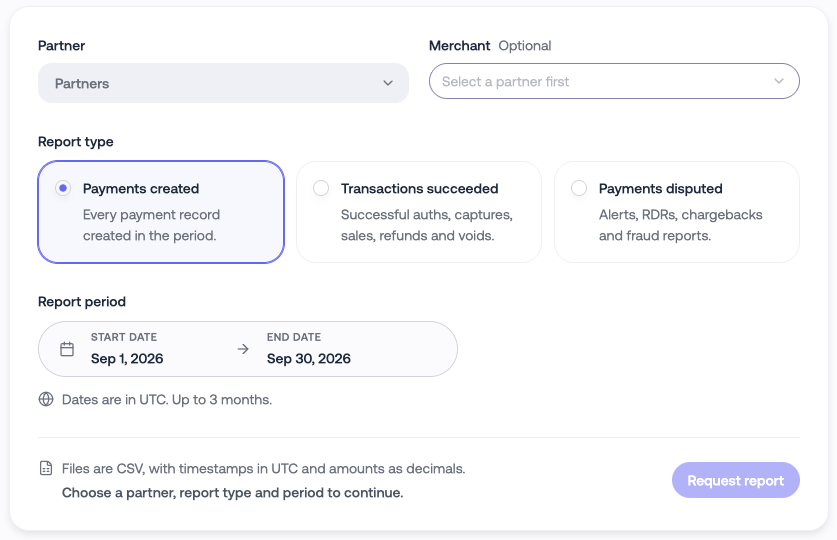
Request a report
1
Open Reports
2
Choose a merchant
Pick one merchant, or leave the merchant empty to export all merchants
in a single file.
3
Choose the report and period
Select the report type and a start and end date. Dates are in UTC and both
are included. A period can be up to 3 calendar months, for example 1 July
to 30 September.
4
Confirm
Select Request report. A confirmation shows your request, the estimated
number of rows and how you’ll receive the file. Confirm to start.
How you receive the file
The delivery method depends on the size of the report:- Smaller reports download straight away in your browser.
- Larger reports are generated in the background. We email you a download link, usually within a few minutes. The link expires after 7 days; after that, request the report again.
Things to know
- If nothing matches your request, you get a file with the header row only.
- Each report is bounded on its own timestamp column. See the bounding note on each report’s page.
- Text values starting with
=,+,-or@are prefixed with an apostrophe. Remove it before matching against your own records. - If a report can’t be generated, you’ll see an error on screen or receive an email saying so. Try again, and contact your account manager if it keeps failing.